MADE FOR YOUR MODEL
Accessories & replacement parts
Shop accessories matched to N5. The matching option is selected for you; you can change between compatible options.

Accessories & Parts · EC051
EC051 Dash Cam
Input: 12V/24V(Trucks) OBD Output: 5V/2.5A Type-C Low Voltage Protection: 11.8V (12V) / 2.38V…
Accessories & Parts
IIWEY Rear Camera Extension Cable
Add 9.8 ft (3 m) of routing length to a compatible IIWEY dash cam rear-camera connection. Thi…
Accessories & Parts
IIWEY Dash Cam Rear Camera 1080P, 2.5mm Plug, 4Pin
Restore rear-view recording with this 1080P replacement camera for compatible IIWEY dash cams…
Accessories & Parts · EC050
EC050 Dash Cam
Specifically designed for IIWEY N5/N7/dash cams – Ensure compatibility before buying. 24-Hour…
Accessories & Parts
IIWEY Dash Cam Car Charger, Type-c Plug, 5V3A
Power a compatible IIWEY dash cam from a 12V/24V vehicle socket with this replacement car cha…
Accessories & Parts
Dash cam 3M sticker mount with static electricity sticker
Replace the adhesive windshield mount for a compatible IIWEY dash cam. Each selected option i…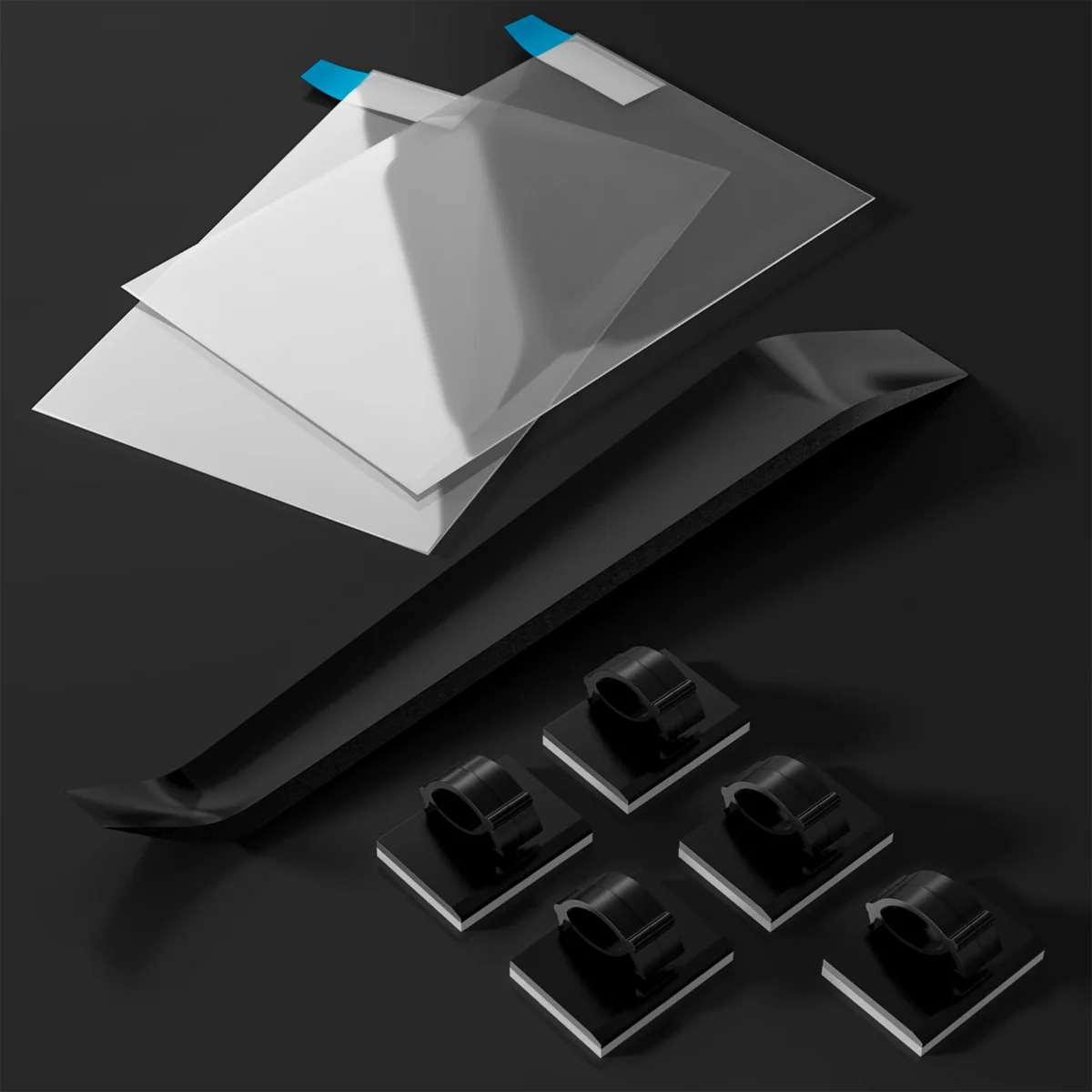
Accessories & Parts
Install / Wiring Tools for IIWEY Dash Cam and Wireless Apple CarPlay Screen
Complete a cleaner dash cam or portable CarPlay screen installation with this compact IIWEY w…
Accessories & Parts
IIWEY SD Card for IIWEY Dash Cam & IIWEY Wireless Carplay Screen
Add or replace storage in a compatible IIWEY dash cam or portable CarPlay screen with an IIWE…START WITH A SAFE SETUP
Installation tutorials
Follow the illustrated guide while parked. Video model references are shown below.
Open illustrated installation guide
iOS · ANDROID
IIWEY App
Connect to your camera, preview the live view, replay recordings and download important clips to your phone.
IIWEY App illustrated guide
For local dash-cam Wi-Fi connection, not CarPlay or Android Auto pairing. Power accessories do not connect to the App themselves. Always park safely before using your phone.
01 · Connect your camera
- Power on the camera and enable Wi-Fi using your model’s menu or button.
- Allow the required local-network or nearby-device permissions on your phone.
- Open phone Wi-Fi settings and select the camera’s network. Use the password shown on the camera or in its model guide.
- If your phone says “No internet”, stay connected. Return to IIWEY App and open or add the camera.


The camera’s Wi-Fi is a short-range local connection, not remote internet viewing.
02 · Play a recording
- Stay connected to the camera’s Wi-Fi and open the connected camera in the App.
- Open Camera Files. Choose Loop for normal and time-lapse recordings, Locked for emergency recordings, Parking for parking-collision recordings, or Snapshot for photos.
- Select a recording to play. Afterwards, return to Live View and confirm recording has resumed.

Opening Settings or Camera Files pauses recording. Return to Live View and check that recording resumes before disconnecting.
03 · Download and save
- Keep the phone connected to camera Wi-Fi and open the camera file list.
- Select the original clip and download it. Keep the App open and your phone near the camera until it finishes.
- The downloaded clip appears in the App’s Album.
- To save it to phone Photos/Gallery, open the downloaded clip and tap Save. Allow photo/media permission when needed.
Do not format the memory card when looking for important evidence. Deleted or overwritten recordings cannot be guaranteed recoverable.
ONE STEP AT A TIME
Troubleshooting guide
No power
Park safely. Check that the supplied power cable is fully connected to the device and vehicle outlet.
Checking your account…