MADE FOR YOUR MODEL
Accessories & replacement parts
Shop accessories matched to iK8. The matching option is selected for you; you can change between compatible options.

Accessories & Parts · iK8
Flexible Arm Mount for IIWEY iK8 CarPlay Screen
Replace a missing or damaged mount on an IIWEY iK8 portable CarPlay screen with this model-sp…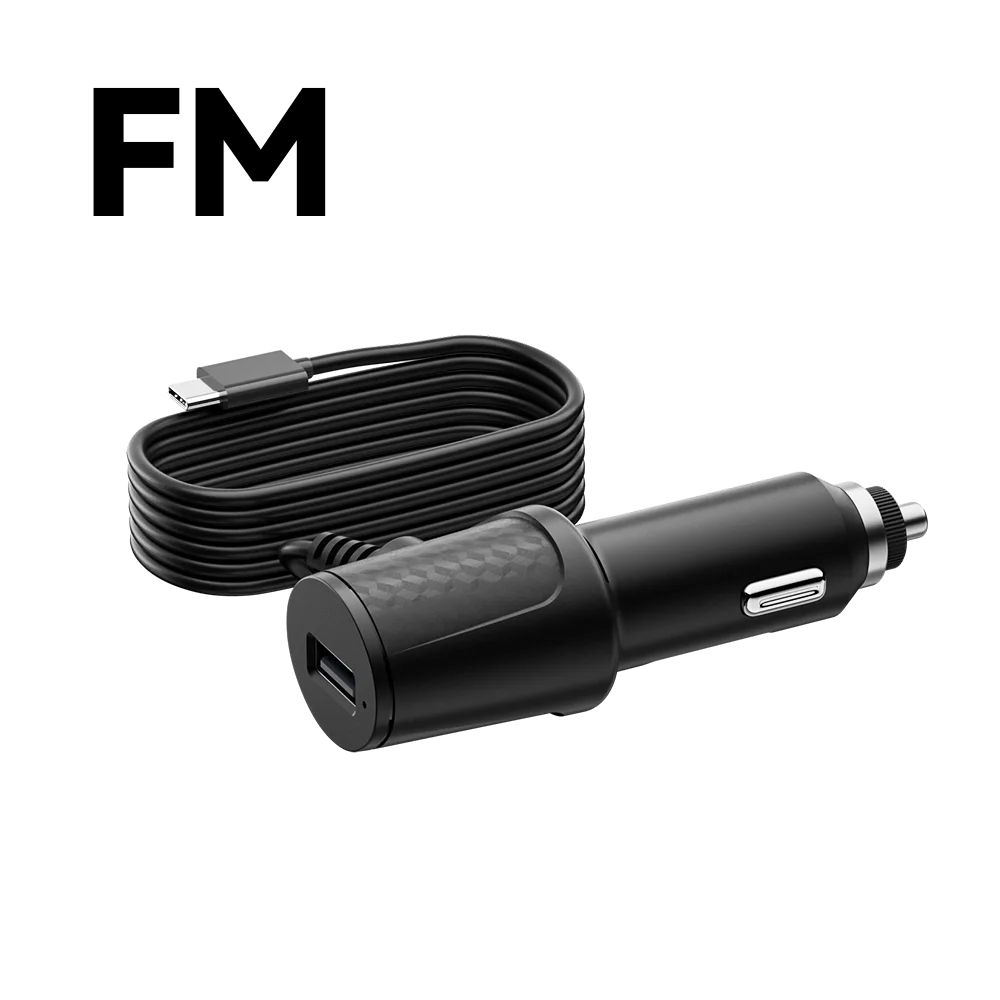
Accessories & Parts
Original Car Charger for IIWEY CarPlay Screen Series
Power a compatible IIWEY portable CarPlay screen from a vehicle cigarette-lighter socket with…
Accessories & Parts
IIWEY Rear Camera Extension Cable
Add 9.8 ft (3 m) of routing length to a compatible IIWEY dash cam rear-camera connection. Thi…
Accessories & Parts
Backup camera for iiwey CarPlay Screen Series
Restore the reversing view on a compatible IIWEY portable CarPlay screen with this 1080P repl…
Accessories & Parts
AUX Ground Loop Noise Isolator for IIWEY iK Series Wireless CarPlay Scree…
FOR IIWEY iK AUX AUDIO — Designed for compatible IIWEY iK Series wireless CarPlay screens use…START WITH A SAFE SETUP
Installation tutorials
Follow the illustrated guide while parked. Video model references are shown below.
Open illustrated installation guideCONNECT YOUR PHONE
Choose a connection mode
Navigation, screen mirroring or recorded videos — start with what you want to use.
Watch the user guide
Learn the screen controls and phone connection modes.
CarPlay
To use the wireless CarPlay function of the iK5/iK9/iK11, you need an iPhone that supports wireless CarPlay. The iK5/iK9/iK11 establishes a connection by first initiating a Bluetooth handshake with your phone. Once your iPhone recognizes iK5/iK9/iK11 as a wireless CarPlay terminal, it will automatically establish a WiFi connection to complete the pairing. > Make sure both WiFi and Bluetooth are enabled on your phone. Please note: Using wireless CarPlay will occupy your phone’s WiFi channel, which means your iPhone cannot connect to other WiFi networks simultaneously.
Park safely before connecting. Menu names can vary by model; choose the matching mode on your screen.
First-Time Wireless CarPlay Connection
- On the iK5/iK9/iK11 home screen, tap the CarPlay icon to enter CarPlay mode.
- On your iPhone, open Settings and make sure both WiFi and Bluetooth are turned on.
- Go to the Bluetooth device list and find IIWEY-iKx_xxxxxx under "Other Devices".
- Tap IIWEY-iKx_xxxxxx, then tap Pair when prompted.
- When asked "Allow Contacts and Favorites Sync?", tap Allow to enable calling and contacts on CarPlay.
- If prompted "Use CarPlay with XXXX?", select Use CarPlay.
- If Bluetooth shows "paired but not connected", tap IIWEY-iKx_xxxxxx to manually connect.
- Wait 10 seconds to 1 minute for iK5/iK9/iK11 to establish the wireless CarPlay connection.
Visual Guide:

Reconnecting to Wireless CarPlay
Make sure WiFi is turned on on your iPhone. When you start your car, iK5/iK9/iK11 will power on automatically. If you haven’t switched to another connection mode (AirPlay, WiFi Video, etc.), iK5/iK9/iK11 will automatically reconnect to CarPlay within 15 seconds to 2 minutes.
Disconnecting CarPlay
To switch to other connection modes (e.g., AirPlay, WiFi Video), you must first disconnect CarPlay. You can disconnect CarPlay in two ways:
- Go to your iPhone Settings and turn off WiFi. A pop-up will ask "Disconnect CarPlay?" — tap Disconnect.
- Open your iPhone’s Control Center, tap the WiFi icon — regardless of current status — then confirm disconnection when prompted.
Troubleshooting Wireless CarPlay Connection Issues, Can't connect to Apple CarPlay, CarPlay connection failed, can't connect to carplay?
Follow these steps if you cannot connect:
- Check with Apple to confirm your iPhone model supports wireless CarPlay. If not, use wired CarPlay.
- Make sure iK5/iK9/iK11 is in CarPlay mode. If not, tap the CarPlay icon on the home screen.
- Use the included IIWEY Car Charger. Other chargers or USB power sources may not work reliably.
- Turn off any VPN or proxy on your iPhone.
- Ensure WiFi is turned on — WiFi is required for wireless CarPlay. Bluetooth is only used for initial pairing.
- Confirm successful Bluetooth pairing and connection:
- If iK5/iK9/iK11 is already paired with another phone, go to BT Manage > Paired Device and disconnect it.
- If it shows "Not Connected", find IIWEY-iKx_xxxxxx in your Bluetooth list and tap to connect.
- After connecting Bluetooth, if prompted "Use CarPlay with XXXX?", tap Use CarPlay.
- If you tapped the wrong option, go to Settings > Bluetooth > IIWEY-iKx_xxxxxx > i icon, then enable CarPlay.
- Wait 10–60 seconds for wireless CarPlay to activate.
- If WiFi is on, Bluetooth is paired and connected, and CarPlay is enabled but still not working:
- Go to Settings > General > CarPlay on your iPhone.
- Locate IIWEY-iKx_xxxxxx under "My Cars" or "Other Cars", tap it to manually initiate CarPlay.

- If all else fails:
- On iK5/iK9/iK11, go to Settings > Clear Connection History.
- On your iPhone, go to Bluetooth, tap the i icon next to IIWEY-iKx_xxxxxx, then Forget This Device.

- Re-enable Bluetooth and WiFi, and re-pair the devices.
Why Some iPhone Apps Don't Appear in CarPlay
Not all iPhone apps will show up in the CarPlay interface. Apple limits CarPlay to specific app categories for safety, such as:
- Navigation: Apple Maps, Google Maps, Waze
- Audio & Music: Spotify, Apple Music, Audible, Podcasts
- Messaging & Calls: Messages, WhatsApp, Phone
Video streaming apps (Netflix, YouTube, Disney+) and other unsupported apps will not appear in CarPlay, by Apple’s design. Additionally, in wireless CarPlay mode, some supported apps may behave inconsistently due to iOS restrictions or unstable WiFi/Bluetooth connections.
To customize which apps appear:
Go to Settings > General > CarPlay > Your Vehicle > IIWEY-iKX_xxxx > Customize > Add / Delete apps
iK5/iK9/iK11 CarPlay Video Tutorials
Rewriting/Adding/Removing Apps in carplay
On your phone, go to Phone Settings > General > CarPlay > [Your car name, e.g., IIWEY-iKxxxxx] and tap on it. Then, select Customize
- Remove an app: In the INCLUDE list, tap the "-" icon next to the app you wish to remove, then confirm or tap Remove.
- Add an app: Scroll down to the MORE APPS list. Tap the "+" icon next to any app you want to add.
- Reorder apps: Currently, you can rearrange the order of apps. In the INCLUDE list, press and hold the "≡" (reorder) button to the right of an app. Once the app entry is highlighted (often with a dark border), drag it to your desired position.
If a specific app you want to use is not listed in either INCLUDE or MORE APPS, it means iOS restricts that app from being used with CarPlay. Typically, iOS only allows apps that do not distract from driving safety—such as navigation, messaging, and music apps—to be added to CarPlay
ONE STEP AT A TIME
Troubleshooting guide
No power
Park safely. Check that the supplied power cable is fully connected to the device and vehicle outlet.
Checking your account…